The builder is a second way to write a newsletter: you build the email from blocks, drag them into place and write in them where they stand. It needs Postalion Pro 1.1 and Postalion 1.8 or newer, and an active licence.
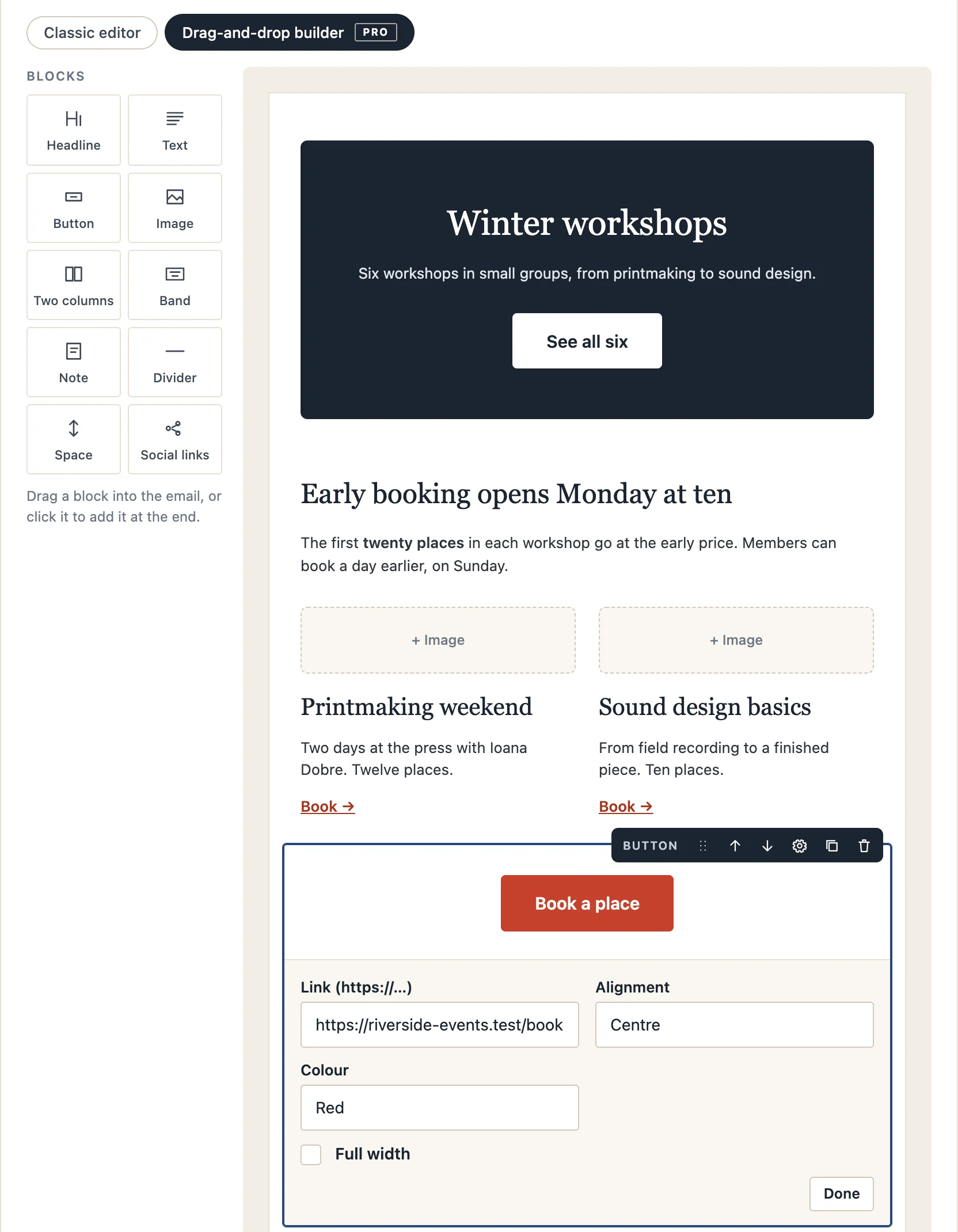
Opening it
In Newsletters → New newsletter, the Content card has two buttons: Classic editor and Drag-and-drop builder. Pick the builder. A new newsletter starts with a headline, a paragraph and a button to replace; an existing one keeps its text as the first block, which you can edit in its settings or leave as it is and build around it.
Everything else on the screen stays the same: subject, template, recipients, preview, the test email, sending and scheduling. The builder writes its email into the newsletter, and Postalion sends it the way it sends any newsletter, inside the template you picked.
The blocks
- Headline: large, medium or small; left, centre or right.
- Text: paragraphs with bold, italic, links and lists.
- Button: a label, a link, a colour (ink, red, blue, green), alignment, full width if you like.
- Image: from the Media Library, with a description for screen readers, an optional link, a width (100, 75, 50 or 33 percent) and alignment.
- Two columns: each with an optional image, a title, text and a link.
- Band: a coloured block with a big title, a line of text and a white button, for the top of an announcement.
- Note: a highlighted aside, such as "Good to know".
- Divider and Space (8 to 120 pixels).
- Social links: Facebook, Instagram, LinkedIn, X, YouTube and your website; only the ones you fill in appear.
Building
- Add: drag a block from the left into the email, where the blue line shows, or click it to add it at the end.
- Move: drag a block by its handle (the six dots), or use the up and down arrows in its toolbar.
- Write: click into a headline or a paragraph and type. Select words and a small bar offers bold, italic, a link and a list. Pasted text comes in as plain text, so it takes the email's own style.
- Settings: the cog in a block's toolbar opens its links, colours, alignment and images under the block; Done closes them.
- Duplicate and remove are in the same toolbar.
Save the draft as usual. The blocks are kept with the newsletter, so it opens in the builder next time, and a duplicated newsletter keeps them too.
What reaches the inbox
The builder writes the kind of HTML mail apps understand: tables, inline styles, no scripts, no web fonts. Columns stand side by side on a computer; buttons are links styled as buttons, so they work in every mail app. Use the Mobile preview to see the phone version before you send.
Back to the classic editor
Pressing Classic editor keeps the email exactly as the builder made it and opens it in the classic editor. From then on, changes made there do not go back into the blocks: switching to the builder again starts from that text as one block. Saving in the classic editor drops the stored blocks.
Without a licence
The builder button stays grey until a Pro licence is active, and the classic editor works as always. Newsletters already built keep their content; it is ordinary email HTML.
Next: A/B subject lines