Newsletters and templates
The composer is a text editor with blocks made for email, a template around it, and a preview that shows the result on a desktop and on a phone.
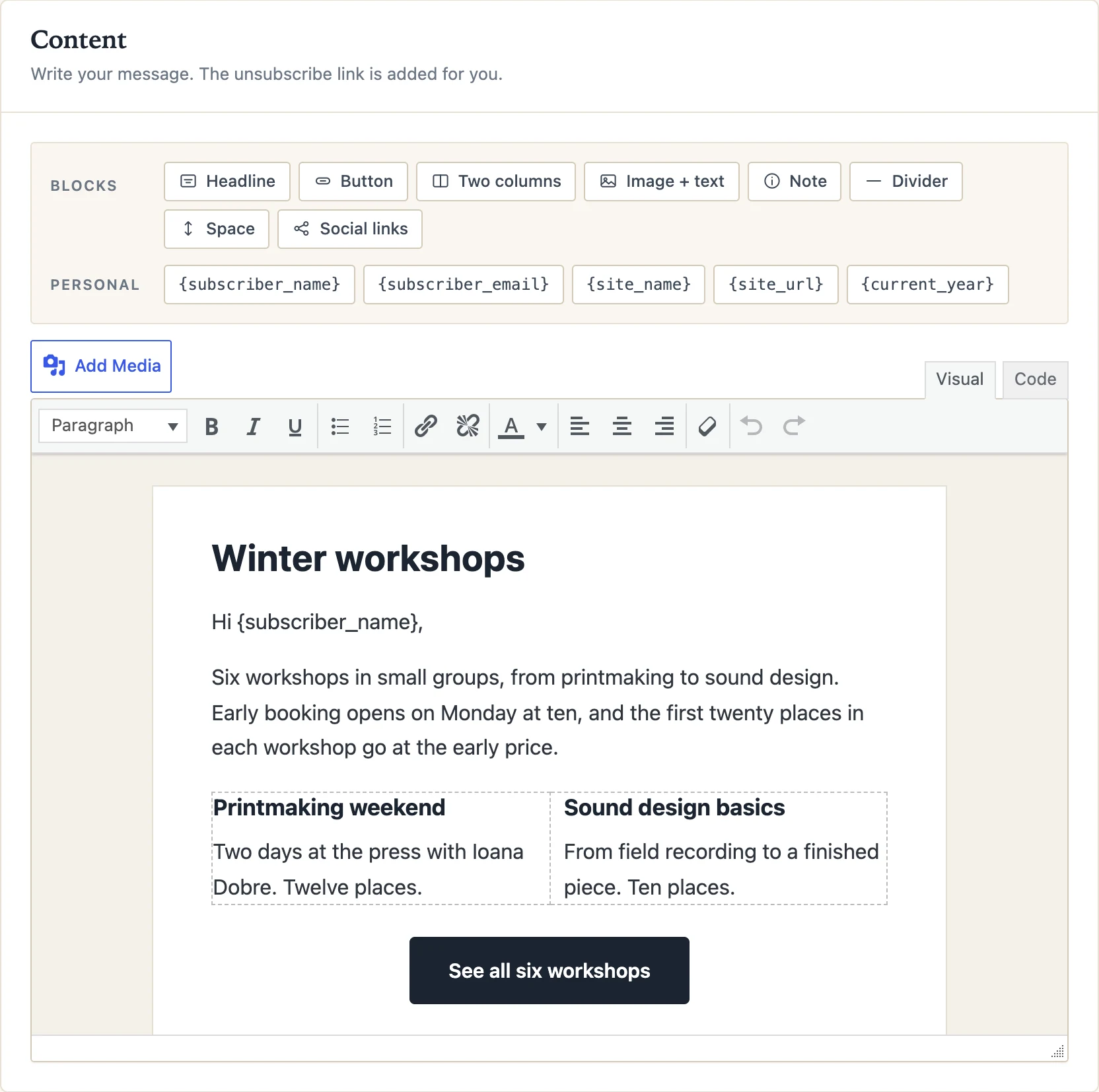
Writing
A newsletter has a subject, an optional preheader (the line mail apps show next to the subject), a template and the content. Write as in a post; the toolbar adds blocks that behave in email clients: a headline, a button, two columns, an image with text, a note, a divider, a follow-us row. Images come from the media library.
Placeholders
These are replaced for each reader when the email is built:
{subscriber_name}: the first name; for users of the site their display name; and "there" when no name is known, so "Hi {subscriber_name}," always reads well.{site_name},{site_url},{site_domain}: from your WordPress settings.{date},{current_year}: the day the email is sent.{unsubscribe_url}: the reader's own unsubscribe link, for templates and custom footers. Every email gets the link in its footer anyway.
Templates
Five designs ship with the plugin: Classic, Letter, Bulletin, Announcement and Card. All are built with the plain tables email clients understand, carry your site's logo or name on top and the unsubscribe link at the bottom, and look right on a phone. Pick one per newsletter; the Templates screen previews them with your content. Developers can add their own through the postalion_templates filter.
Preview and test
The preview shows the real email, desktop and phone, with the placeholders filled in for you. Send test mails it to any address, so you can check it in the mail apps your readers use before anyone else sees it.
Send now or later
Send puts every recipient in the queue and starts at once; Schedule picks a date and time in your site's time zone. The Sending screen shows the progress live, with stop and resume. The queue is the reason a large list does not time out and an interrupted send does not start over: each recipient is marked when their email leaves, so nobody gets it twice. Batch size and pause are under Settings → Sending speed.
Afterwards
A sent newsletter stays under Newsletters with its date and recipient count; with statistics on, its opens and clicks too. Every single email is in the Logs with a preview of exactly what that person received. Duplicate a sent newsletter to start the next one from it.
Next: Automatic emails